Send ecommerce orders to Slack: 4 ways that work
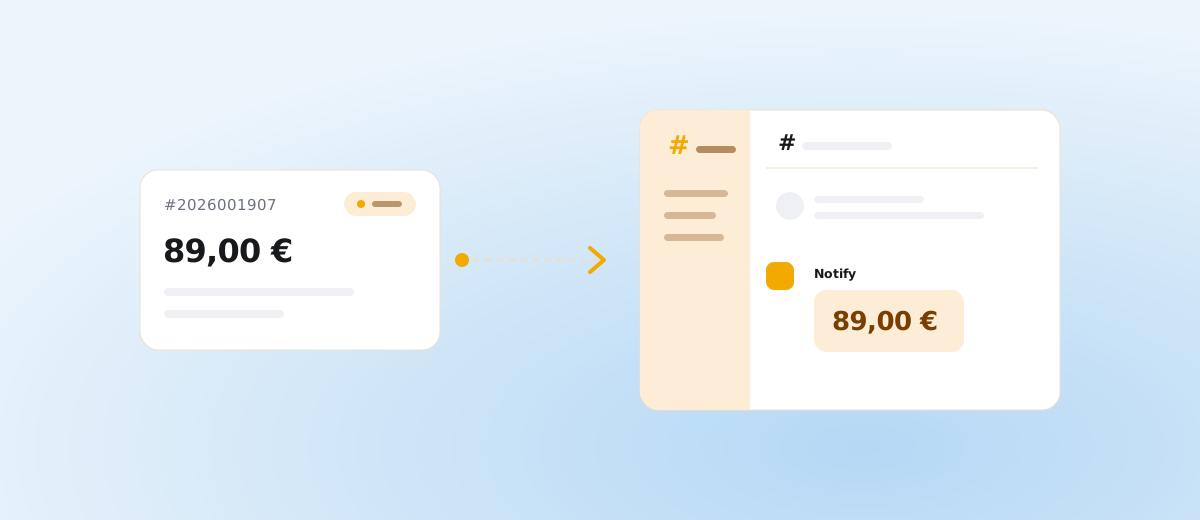

There are four ways to send ecommerce orders to Slack: forward the order e-mail, use an automation service such as Zapier, connect your shop’s webhook to a Slack incoming webhook yourself, or install a ready-made add-on. The first two are quickest to start, the third is cheapest, and the fourth takes the least ongoing work. Below you will find what each one involves, how to create a Slack webhook, and what the message should contain.
What are the options for sending orders to Slack?
The options differ in how much work they need up front and how much later.
E-mail to Slack. Slack can receive mail at a channel address, so you only have to set up forwarding in the shop or in your mail client. It takes a few minutes. The message in the channel looks like the full e-mail, including a body nobody wants to read, and it contains customer data. It is fine for a trial and usually not for daily operation.
An automation service. Zapier, Make or n8n can take an event from your shop and send it to Slack. You build the message yourself and choose what goes in it. The price is another subscription, another account to maintain and a run limit that is easy to hit in a seasonal peak.
Shop webhook plus Slack incoming webhook. The platform sends an HTTP request when an order arrives, you receive it on a small server of your own, pick the fields and post them to the Slack webhook address. You get full control and no monthly fee, but someone has to write the code, deploy it, monitor it and retry failed deliveries. In a larger shop this becomes a maintenance item of its own. The related pitfalls are covered in CMS webhooks in practice.
A ready-made add-on. The add-on runs outside your shop, receives events from the platform and posts them to the channel. You only set the destination and which events to send. It is the shortest path if you do not want to write code.
Which one fits depends on whether you have a developer and how many orders you expect per day. At ten orders a week, forwarding is enough. At a hundred a day you want reliability and retries.
How do you create a Slack incoming webhook?
You need permission to add apps in your Slack workspace. The process takes about five minutes.
- Open api.slack.com/apps and sign in to the workspace you want to post to.
- Click Create New App and choose From scratch.
- Enter an app name, for example “Shop orders”, and pick the workspace.
- In the left menu open Incoming Webhooks and switch on Activate Incoming Webhooks.
- At the bottom of the page click Add New Webhook to Workspace.
- Choose the channel where messages should appear and confirm with Allow.
- Copy the generated URL. It starts with
https://hooks.slack.com/services/and continues with a long string of characters.
This URL works like a password. Anyone who has it can post to the channel, so keep it out of public repositories, tickets and shared spreadsheets. If it leaks, revoke it in the app settings and create a new one.
One webhook belongs to one channel. If you want orders and errors kept apart, create two webhooks.
What should an order message contain?
At a glance, the message should tell the team whether anything needs doing. The useful set is short:
- the order number, so it can be found in the admin,
- the total with currency,
- the number of items,
- the payment method, mainly whether it is cash on delivery or already paid,
- the shipping method, because it decides who packs the order and how.
A typical line might read: “New order #2025104482 · €64.90 · 2 items · card · Packeta”.
Leave personal data out. A customer’s name, address, e-mail and phone number add nothing in a team chat and widen the exposure when someone new joins the channel or the workspace is exported. The order number is enough to handle the order, since it opens everything else in the admin. If you want to recognise the customer in the message, consider initials at most, and make that a deliberate decision.
How do you keep the channel useful?
An order channel usually goes wrong when everything starts landing in it.
- Create a dedicated channel such as #orders and do not use the main team channel. Alerts get lost in ordinary conversation there.
- Post only events someone acts on: a new order, a cancellation, an unpaid order. Status changes nobody handles do not belong in the channel. Which events are worth sending and where is covered in Which channel for which event.
- Agree who takes an order. An emoji reaction under the message is enough. Without a rule, everyone assumes a colleague has it.
- If more than a few dozen messages arrive per day, consider a daily summary instead of individual posts. During sales such as Black Friday it saves a lot of scrolling, as the article Black Friday order alerts explains.
- Mute the channel only for the time nobody should be disturbed, not permanently. A permanent mute means no one sees the alerts.
For a wider look at why e-mail fails as an alert, see Why e-mail is not an alert channel.
How do you test that the alerts work?
Check three things before going live.
First, the webhook itself. Send a test request to its URL, for example from a terminal: curl -X POST -H "Content-type: application/json" --data '{"text":"Test"}' WEBHOOK_URL. If “Test” appears in the channel, the connection works.
Second, the whole chain. Create a test order in the shop and check that it shows up in the channel with the expected fields and within a reasonable time. Try a cancellation and an unpaid order as well, if you send them.
Third, the failure case. What happens when Slack is briefly unavailable? A good setup retries the delivery, a bad one drops the message silently. How to test events without real orders is described in Testing webhooks without real orders.
Can you do this without writing code?
If you would rather not write code, our add-on Notify can do it. It has nine channels including Slack, five event types and needs no change to your shop template. In the add-on you paste the Slack webhook URL you got by following the steps above, pick the events, and after saving it sends a test message to the channel. It reads the number, total, item count, payment and shipping from the order. The customer’s name appears in the message only if you turn that on for the channel, and it is not stored.
Frequently asked questions
Is a Slack webhook safe? The URL works like a password: whoever gets it can post to the channel but cannot read anything from it. If it leaks, revoke it and create a new one.
Can I post to several channels? Yes, each channel has its own webhook.
How many messages a day is still reasonable? It depends on the team, but if nobody reads the channel after a week, there are too many. Filter the events or switch to a daily summary.
Do I need a developer for Slack? For your own webhook, yes. For a ready-made add-on, no. Create the webhook with the steps above and paste its URL.